Message
Your wordsThe text inside the bubble. Type anything, emoji included, and the bubble re-fits itself around it. This is the one thing a preset never touches, so you can flip through every look without retyping a word.
Drop in a chat bubble that actually moves. Chat Bubbles gives you nine bubble styles, speech tails, type-on text, typing dots, and a beat you can sync to, all styled in a couple of clicks. Build the look yourself or start from a preset.
The short version
Drag Chat Bubbles onto your timeline, type your message, and you get a clean, animated speech bubble sitting over your video. Pick a style and it restyles in one click: a blue message, a green message, a comic POW, a glowing neon sign, a morphing acid blob, and more. The bubble sizes itself to your words, so you never push corners around by hand.
From there it moves. Type the text on one character or one word at a time, add a bouncing typing-dots tease before it appears, and sync a pulse, bounce, or glow to a beat you set. No keyframing required. This manual covers the whole workflow, every control, and the presets.
First run
From download to a clean export. Here is the whole path.
On the timeline
Chat Bubbles is a Title, so it floats over whatever is underneath it. Adding it takes three moves.
Because it is a Title, Chat Bubbles lays itself out to your project's frame. Wide 16:9, vertical 9:16 for Reels, Shorts, and TikTok, or square: the bubble and its tail fit the frame and your text either way. Use the Alignment control to park it left, center, or right.
The motion lives inside the bubble. Turn on Text Reveal to type the words on, add Typing Dots for a "..." tease before it appears, and switch on Tempo React to move it to a beat. All three are covered further down.
The layout
Everything lives in one inspector. From the top down it reads in a few blocks, and the controls that do not apply to your setup hide themselves, so it stays tidy.
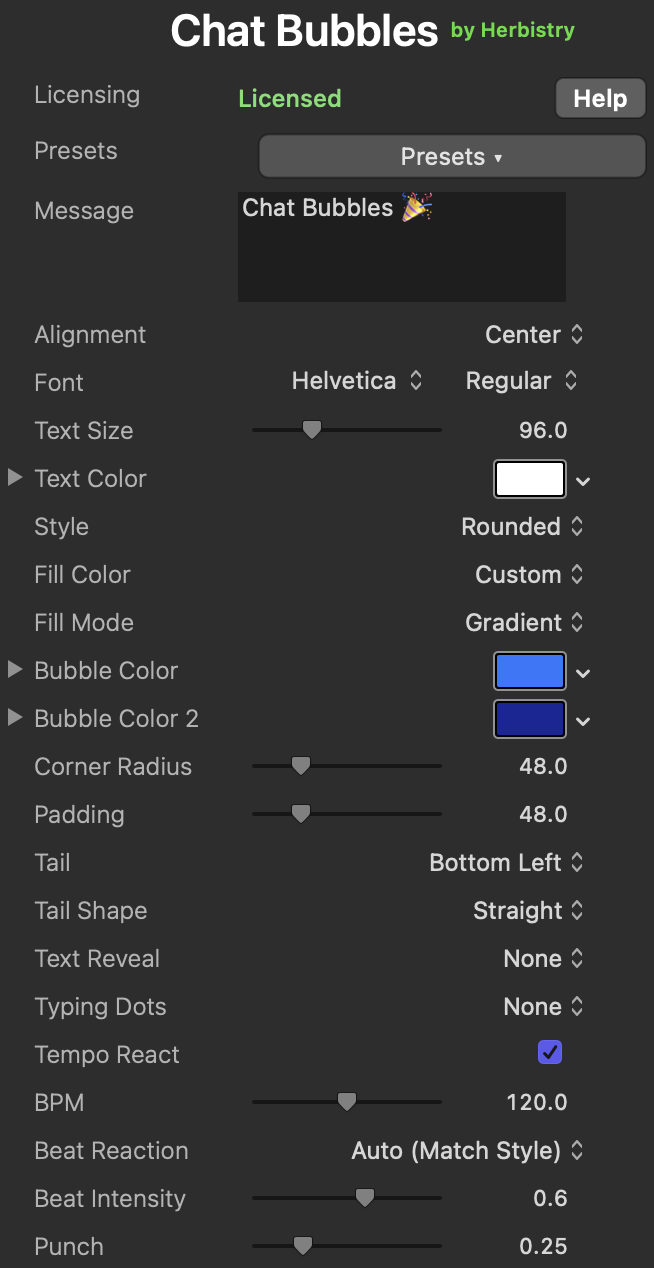
The Chat Bubbles inspector. Here Gradient fill and Tempo React are on, so Bubble Color 2 and the beat controls are showing; the Help button (top right) opens this manual.
Pick a look
The Style menu sets the bubble's shape and personality. Color is separate, it comes from the Fill controls below, so you can put any style in any color. The one exception is SMS, which sets its own colors to match a real phone.
The default
The classic rounded-rectangle chat bubble with a curved tail. When in doubt, start here.
Hard corners
A clean rectangle with all four corners squared off. Modern and no-nonsense.
One clipped corner
A rounded bubble with one corner sliced flat. A small twist that reads designed.
Fully rounded
A capsule with no tail. The cleanest, quietest option, great for captions.
Glowing sign
A bright outlined tube with a glow, and text that glows in its own color. Made for night looks.
Speech balloon
An oval comic balloon with a heavy ink outline, a spiky tail, and a drop shadow. Straight off the page.
Organic shape
An irregular, morphing blob with no tail. Pairs perfectly with a beat reaction.
Hand-drawn
A rough, wobbly outline that looks doodled by hand. Charming and loose.
Phone bubble
The phone-text look. A right-side tail reads as your outgoing message in green; a left tail or none reads as incoming in gray. Colors are set for you.
Every style except SMS takes its color from the Fill Color, Fill Mode, and Bubble Color controls, and its text from Text Color. So Neon can be any color, Comic can be any color, and so on. Style decides the form; you decide the paint.
Every control
Sizes here are measured against a 1080-tall frame and scaled to your project, so the bubble looks the same whether you render small or in 4K.
The text inside the bubble. Type anything, emoji included, and the bubble re-fits itself around it. This is the one thing a preset never touches, so you can flip through every look without retyping a word.
Sitting right under Message, near the top of the inspector, this parks the whole bubble on the left, center, or right of the frame. The typing dots line up to the same side, so the pre-roll lands where the bubble will.
The typeface of your message: any font on your Mac, plus its weight (Regular, Bold, and so on). If a face can't load, it falls back to the system font so your text never disappears.
How big the words are inside the bubble.
Tidy and caption-sized.
Bold text that fills the frame.
The color of your text. Every style honors it except SMS, which sets its own text color to match the phone look.
Custom, plus nine ready-made colors: Blue, Green, Gray, Red, Yellow, Purple, Pink, Black, and White. Pick a named color and it drops straight into the Bubble Color well; choose Custom to use your own.
How the fill paints. Solid is a flat color. Gradient blends Bubble Color into Bubble Color 2. Outline draws just the ring, no fill. Glass is a soft, translucent panel.
Bubble Color is your custom fill, and the top of a gradient. Bubble Color 2 is the bottom of the gradient, and it only appears when Fill Mode is set to Gradient.
How round the bubble's corners are.
Sharp, squared-off corners.
A fully rounded capsule.
The space between your text and the bubble's edge. The bubble auto-fits the words; padding sets the margin around them.
Text hugs the edge, tight and compact.
Roomy, airy breathing space.
The little pointer that makes it a speech bubble. Turn it off, or aim it from any corner: Bottom Left, Bottom Right, Top Left, or Top Right. On SMS it also picks the side, a right tail reads as your outgoing message.
Straight is a clean triangle. Curved blends smoothly into the bubble. Nub is a short rounded stub. Comic Spike is the sharp cartoon point. It appears once a tail is on.
Make it move
A bubble that types itself on reads as a real conversation. These controls handle the entrance of the words, and the little tease before them.
What comes in over time. None shows the whole message at once. Character types it out letter by letter. Word brings it in a word at a time.
How each piece arrives: Type-On is a crisp typewriter pop, Fade-In eases up, Slide Up and Slide Down glide into place, and Pop springs in.
How long the whole message takes to finish arriving.
Instant, the message is just there.
A slow, deliberate crawl.
Adds the bouncing "..." pill before the bubble pops in, the universal "someone is typing" beat. Pair it with a Pop reveal for a real text-message feel.
How long the dots bob before the bubble shows up. Long enough to build the pause, short enough to keep things moving.
Make it dance
Flip on Tempo React and the bubble moves to a beat you set. There is no audio file to load, it runs on a steady metronome, so set it to your song's tempo and let it ride.
One click, full look
A preset is a snapshot of the whole look at once: style, colors, fill, tail, and any animation. Pick one from the Presets menu at the top of the inspector, then tweak anything you like. One thing presets never touch is your Message or Font, so the look changes and your words stay put.
Rounded · solid blue · curved tail
The classic glossy blue chat bubble with white text and a curved tail. Your everyday outgoing message.
Rounded · solid green · white text
The green-bubble look, rounded so your text color stays yours to change. Curved tail, ready to send.
Pill · glass · no tail
A translucent light-gray caption pill with dark text. Clean for captions, notifications, and lower thirds.
Comic · yellow · spiky tail
A bold black-outlined yellow comic burst with black text and a spiky tail. POW.
Comic · white · heavy ink line
The classic white comic balloon, thick ink outline, black text, spike tail. Straight off the page.
Neon · magenta · Color Pulse on
A glowing hollow magenta sign with neon text. Ships with the beat already on, so the glow throbs.
Blob · purple to magenta · Bubble Pulse on
A morphing purple-to-magenta gradient blob that churns its shape to the beat. Trippy by design.
Sketch · white · Boil on
A hand-drawn wobbly outline with dark text and an edge that boils. Looks doodled live.
Neon Sign, Acid Blob, and Sketch Doodle all land with Tempo React already on, so they react the moment you drop them in. The Messaging and Comic presets are calm by default; flip Tempo React on whenever you want them to dance too.
Make it yours
Built a look you love? Save it and reuse it anywhere.
Each preset you save is a small file on your Mac, in your home folder under Library ▸ Application Support ▸ Herbistry ▸ ChatBubbles ▸ Presets. (That Library folder is hidden by default: in Finder, hold Option and open the Go menu to reach it.) Because they live there and not inside one project, your looks follow you across every project, and you can copy a preset file and send it to someone else so they get the exact same look.
Cheat sheet
Every slider at a glance, from one end to the other.
| Control | Low end | High end |
|---|---|---|
| Text Size | Small: caption-sized | Large: fills the frame |
| Corner Radius | 0: sharp, squared corners | 200: a fully round capsule |
| Padding | 0: text hugs the edge | 200: roomy breathing space |
| Reveal Duration | 0: instant | 3s: a slow crawl |
| Dots Duration | 0: no pre-roll | 3s: a long tease |
| BPM | Low: a slow pulse | High: a fast beat |
| Beat Intensity | 0: barely moves | 1: full reaction |
| Punch | 0: smooth swell | 1: a snappy hit |
Before you install
Chat Bubbles is a Mac title plugin. Here is what you need.
Get help
Trouble installing, styling, or unlocking Chat Bubbles? Reach out and we'll sort it.