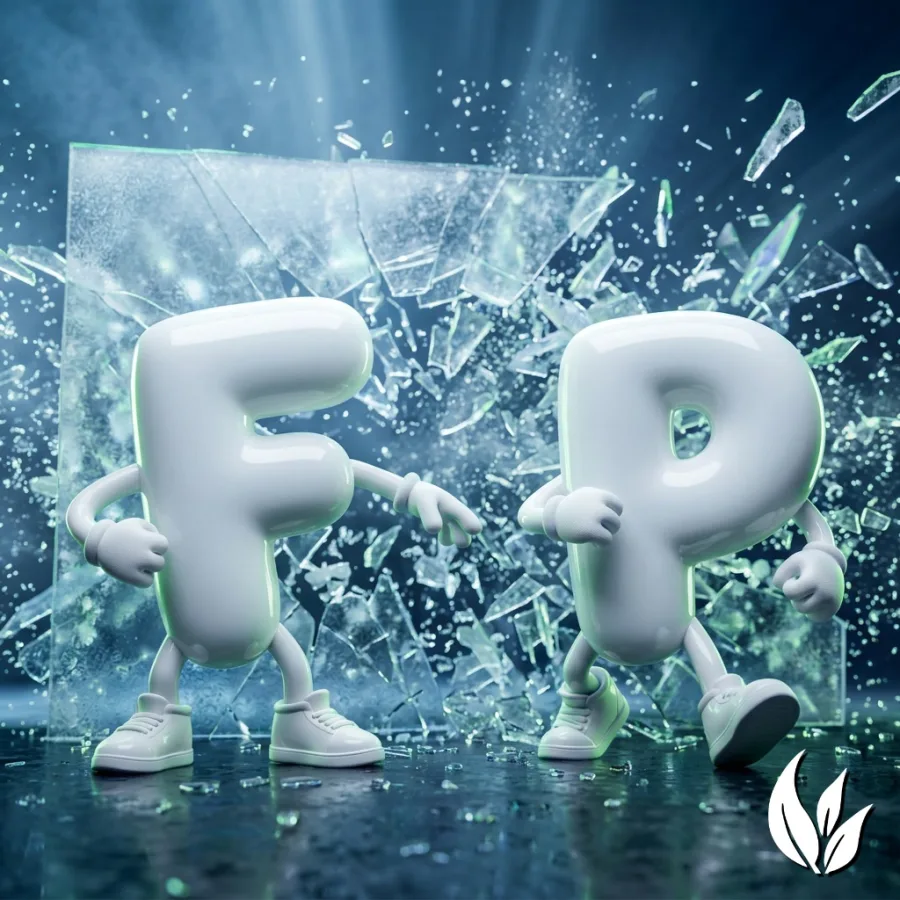
3D glass-shatter effectby Herbistry · for Final Cut Pro & Motion
Fracture
Break footage like glass. Fracture is a real 3D shatter: aim the hit, set how hard it lands, then watch the pieces bend the light, spin, and rain down. Keyframe the break yourself, or pick a preset and let it play.
The short version
What Fracture does
Drag Fracture onto a clip and your video breaks apart like a dropped pane of glass. You decide where the hit lands, how hard it lands, and how the pieces behave: how many shards, how tightly they cluster around the strike, how far they scatter, how they tumble. Every piece is real glass, so it bends the footage behind it, catches light along its cut edges, and can extrude into a solid 3D slab with real thickness.
The break plays over time. Keyframe a single slider from whole to fully shattered, or flip on Auto Animate and let the whole thing run on its own. Nine presets cover the common looks, from a window cracking to a full blast toward the camera, and four glass styles set the material in one click. This manual walks the lot: install, the inspector top to bottom, every control, the presets, and a few tips for a clean break.
First run
Install, run, and unlock Fracture
From download to a clean export. Here is the whole path.
Get FxFactory. Fracture installs through FxFactory, the free plugin manager for Final Cut Pro and Motion. Grab it at fxfactory.com if you do not have it already.
Install Fracture. Find Fracture by Herbistry inside FxFactory and install it from there. If Final Cut or Motion was open, restart it so it picks up the new effect.
Find it in Final Cut. Fracture is an effect, so it lives in the Effects browser. Open the Effects sidebar, look under Herbistry (or just search "Fracture"), and drag it onto a clip in your timeline. In Motion it shows up in Filters.
Try it free. Every preset, glass style, and control works right away, no time limit. The catch is a Herbistry leaf watermark tinting the frame, so the trial is perfect for auditioning the break but not for a clean export.
Buy and unlock. Purchases happen right inside the FxFactory app. Buy Fracture there and the watermark disappears. FxFactory remembers the license, so it is a one-time thing.
The Licensing row, right at the top
The first row of the inspector is Licensing. It shows whether you are on the trial or fully licensed. While you are on the trial it carries a Buy button that takes you to checkout, plus a Help button that opens this manual. Once you are licensed the watermark is gone and the row just confirms it.
On the timeline
Add it to a clip
Fracture is a clip effect, so it works on the clip you drop it on. Three moves and you are breaking glass.
Drag it on. From the Effects browser, drop Fracture onto a clip in your timeline. It applies straight to that clip.
Drive the break.Fracture Progress is the play head for the shatter. Keyframe it from 0 to 100 across the clip for full control, or skip keyframes entirely and turn on Auto Animate. More on both below.
Aim the hit. Drag the on-screen crosshair to set the Impact Point, the spot the break starts. The cracks and the crushed core radiate out from there.
Two ways to play it
You drive the same break one of two ways. Keyframe Fracture Progress when you want to land the shatter on a specific beat, hold it mid-break, or run it in reverse. Auto Animate when you just want it to go: it plays the whole break on its own using the Animation controls, no keyframes at all. Pick whichever fits the edit.
Don't like the break? Re-roll it
The fracture pattern is random but repeatable. If a particular break crosses a face or lands somewhere awkward, nudge Seed for a brand-new pattern with all your other settings intact. Free do-overs until it looks right.
The layout
The inspector, top to bottom
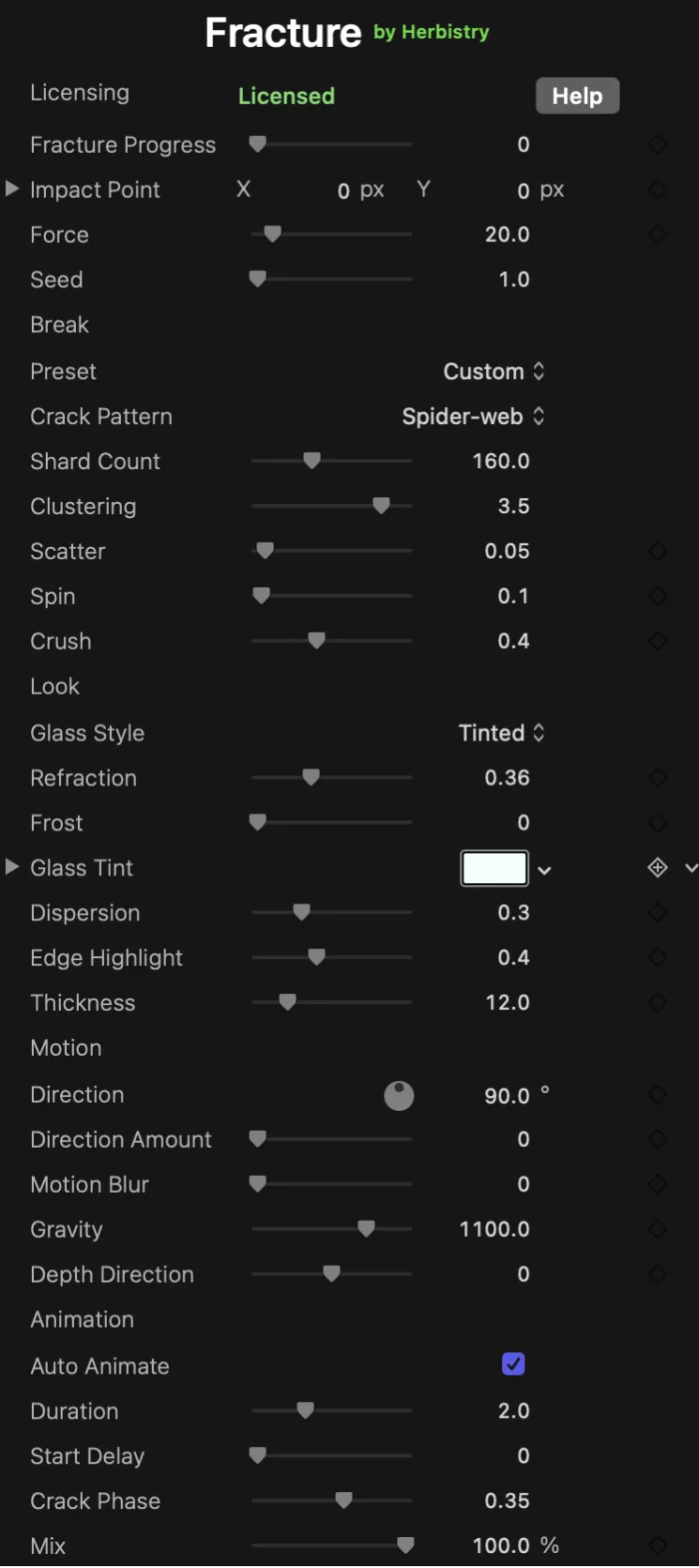
Everything lives in one inspector, and it reads top to bottom in a few blocks: your license and the Presets menu at the top with the break itself, then Break, Look, Motion, and Animation. Final Cut's own Mix slider sits at the very bottom.
The Fracture inspector. Here it is set to the Fly At Camera look, mid-build, with the crush core pushed up.
The break
Licensing your license status, with Buy and Help buttons
Presets nine factory looks, plus the ones you save
Fracture Progress plays the shatter from whole to flown out
Impact Point the on-screen crosshair where the hit lands
Force how hard the pieces fly out
Seed re-rolls the fracture pattern
Break
Crack Pattern the shape of the break
Shard Count few big pieces to many small
Clustering, Scatter, Spin how the pieces sit and move
Crush a powdered zone at the strike
Look
Glass Style a one-click material
Refraction, Frost, Glass Tint the glass itself
Dispersion, Edge Highlight color split and lit edges
Thickness extrudes shards into 3D slabs
Motion
Direction, Direction Amount aim the blast or add wind
Motion Blur smears the fast shards
Gravity pieces sag and rain down
Depth Direction recede into the screen or fly at camera
Animation
Auto Animate plays the break with no keyframes
Duration, Start Delay how long, and the wait first
Crack Phase cracking time before the snap
Final Cut's own
Mix blends the effect with the untouched clip; this one is Final Cut's, not ours
Every control
The controls, one by one
In inspector order, top to bottom. The Presets menu and the Glass Style popup each get their own section further down, since they set a whole batch of these in one click.
The break
Fracture Progress
0 to 100
The spine of the whole effect. It runs the break from start to finish, and it is the slider you keyframe when you want to drive the shatter by hand. Leave it at 0 for a whole, untouched frame; push it to 100 and the pieces have all flown out.
0
The footage is whole, not a crack in sight.
100
The pieces have flown out, the break is done.
Prefer hands-off? Turn on Auto Animate and leave Progress alone.
Impact Point
On screen
Where the break starts. Drag the crosshair in the viewer to place it. The cracks spider out from here and the crushed core sits right on it, so put it on whatever takes the hit.
Force
0 to 200
How hard the shards fly out from the impact.
Low
A gentle hit, pieces barely leave the frame.
High
A violent blast, glass everywhere.
Seed
Re-roll
Re-rolls the fracture pattern. Every value is a different arrangement of pieces with the same settings, so if a break lands wrong, nudge this for a fresh one.
Break
Crack Pattern
4 patterns
The shape of the break, before any pieces move. Radial throws cracks outward from the impact. Uniform breaks the whole frame evenly. Spider-web rings the impact with a web of cracks. Grid dices it into rows and columns, like safety glass.
Shard Count
20 to 400
How many pieces the frame breaks into.
Low
A few big chunks.
High
Hundreds of small pieces.
Clustering
1 to 4
Packs more, smaller pieces near the impact and leaves bigger ones at the edges, the way real glass breaks finest where it was hit.
1
Pieces sized evenly across the frame.
4
Dense and fine right at the strike.
Scatter
0 to 1
Randomizes how far and wide the pieces spread as they fly.
0
A tidy, even break.
1
Pieces flung everywhere.
Spin
0 to 4
How much each shard tumbles as it flies.
0
No tumble, pieces stay flat.
4
Fast, wild tumble.
Crush
0 to 1
A pulverized, powdered-glass zone right at the impact point. The spot that took the hit does not crack so much as get ground to dust.
0
A clean break, no powder.
1
A powdered core at the strike.
Look
Refraction
0 to 1
How much each shard bends the footage behind it, the way looking through tilted glass warps what is past it.
0
Flat, no bend.
1
Shards warp the footage hard.
Frost
0 to 1
Takes the glass from clear to frosted.
0
Clear glass.
1
Fully frosted, milky pieces.
Glass Tint
Color
The color the footage takes on as it passes through the glass. Leave it white for clear glass, or tint it for stained, smoked, or colored shards.
Dispersion
0 to 1
Splits light into a prismatic rainbow along the cut edges, the way a real shard throws color where it is thinnest.
0
No color split.
1
Rainbow edges.
Edge Highlight
0 to 1
Lights up the cut edges so the breaks read as sharp glass rather than flat cutouts.
0
Dark cut edges.
1
Bright, lit edges.
Thickness
0 to 60
Extrudes each shard into a solid 3D slab. This is the control that turns flat shapes into real glass with depth, and it is what makes the tumble read.
0
Flat panes.
60
Solid 3D glass slabs.
Motion
Direction
0 to 360°
The angle of the blast, as a dial. On its own it does nothing visible until you raise Direction Amount, which is what gives it a direction to push toward.
Direction Amount
0 to 1
How much the pieces favor the Direction angle over an even, radial blast.
0
A pure radial burst, every which way.
1
All pieces blown one way, like wind.
Motion Blur
0 to 1
Smears the fast-moving shards along their path. The faster a piece is going, the more it streaks.
0
Crisp shards.
1
Fast pieces smear.
Gravity
0 to 1500
Pulls the pieces down so they sag and rain like real falling glass instead of hanging in the air.
0
Pieces float, weightless.
1500
They rain straight down.
Depth Direction
−100 to 100
Pushes the shatter into or out of the screen along the camera axis. It is bipolar, so the center is flat and each side does the opposite.
−100
Shards recede into the screen and shrink away.
+100
Shards fly toward the camera and grow.
Make it play
Animate the break
There are two ways to play the same shatter. Keyframe Fracture Progress by hand, or turn on Auto Animate and let these controls run it for you. Auto Animate is the fast path: no keyframes, it just goes.
Auto Animate or keyframes, not both
If you want the shatter to land on an exact frame, hold mid-break, or run backward, leave Auto Animate off and keyframe Fracture Progress instead. Auto Animate takes the wheel from Progress while it is on, so reach for one or the other, not the two together.
Auto Animate
On / off
Plays the whole break automatically over the clip, start to finish, with no keyframes at all. Turn it on and Fracture drives Progress for you using the three controls below. Turn it off when you would rather keyframe Progress yourself.
Duration
0.1 to 6 sec
How long the automatic break takes, end to end.
0.1
A quick snap.
6
A slow, drawn-out break.
Start Delay
0 to 10 sec
A wait before the break kicks off, so the footage plays clean for a beat and then shatters. Handy for landing the hit on a sound or a cut.
Crack Phase
0 to 0.6
The share of the time spent cracking and spidering before the snap into flying shards. Higher reads as a slow crack that finally lets go.
0
It snaps apart at once.
0.6
It cracks a long time first.
One click, full look
Presets
A preset is the whole break at once: pattern, piece count, force, glass, motion, the lot. Click the Presets button near the top of the inspector and pick a look. It sets everything and turns Auto Animate on, so it plays right away, and the name stays on the button so you always know what you are looking at. Tweak anything afterward, the look is yours. The nine factory looks below are grouped the same way in the menu.
Glass
Tempered Shatter
Grid · 420 tiny shards · matte · rains down
Safety-glass dicing: hundreds of small cubes that let go and rain straight down. A car window giving way.
Window Crack
Radial · a few big panes · clear · cracks first
A few big panes and a gentle hit that cracks first, then falls. The slow, believable one.
Spider-Web Impact
Spider-web · low force · tinted · crushed core
A web of cracks spidering out from a soft hit, with a crushed core right where it landed. Tinted glass.
Ice Splinter
Uniform · icy cells · icy · spins and falls
Splintered icy cells with a tumble that fall heavily. Icy glass, cold and frosted.
Debris
Ceramic Scatter
Uniform · mid force · matte · windblown
A mid-force break with plenty of scatter and spin, blown to one side by a light directional wind. Matte glass.
Stone Crumble
Grid · chunky pieces · matte · heavy drop
Chunky, heavy pieces that drop fast and crush hard at the strike. More rock than glass.
Motion
Blast Apart
Radial · huge force · clear · toward camera
A violent explosion: huge force, maximum scatter and spin, pieces pushed out toward the camera. Clear glass.
Implode / Recede
Radial · weightless · clear · pulls back
The pieces pull back and shrink into the screen instead of flying out, weightless. A reverse-shatter feel.
Fly At Camera
Radial · fast · clear · rushes the lens
Shards rush straight toward the lens, fast and close. Clear glass. Pair it with Motion Blur for the full effect.
Save your own
Dialed in a break you want to keep? Open the Presets menu and hit Save Current Settings. It captures the whole look (pattern, force, glass, motion, all of it) under your name, and it shows up in the menu under My Presets, in every project on this Mac. Rename or delete from the same menu. The per-shot stuff (Impact Point, Fracture Progress, Seed, Start Delay) stays out of the preset on purpose, so a saved look drops onto any clip without dragging the old shot's aim along with it.
Set the material
Glass styles
The break is the geometry. The glass is the material on top of it. Glass Style, in the Look group, sets the four material sliders (Refraction, Frost, Glass Tint, and Dispersion) in one click. Editing any of those afterward flips the menu to Custom, which just means the material is now yours.
Clear
The default · light refraction
Neutral, lightly refractive glass. The default, and the one to start from when you are not sure.
Icy
Frosted · cool blue · heavy refraction
Frosted and cool-blue, with heavy refraction. Cold, milky, the look behind Ice Splinter.
Tinted
Light green tint
A light green-tinted glass, like the edge of a real pane. Subtle color through every shard.
Matte
Low refraction · soft frost · warm
Low refraction with a soft frost and a slightly warm cast. Less glass, more stone or ceramic.
Style sets the glass, the break stays put
Glass Style only touches the material. Your Crack Pattern, piece count, force, and motion stay exactly as you left them, so you can flip from Clear to Icy to Matte and watch only the glass change while the break holds.
Getting a clean result
Tips for a believable break
A handful of moves that make the difference between a sticker effect and real glass.
Crack first, then fall
Lower the Force and raise Crack Phase. The frame sits there cracking for a beat before it lets go, and that pause is what reads as real glass instead of an instant pop.
Glass falls
Crank Gravity and your shards stop hanging in the air like they are posing for a photo. They sag, drop, and rain, the way broken glass actually behaves.
Sell the third dimension
Thickness plus Refraction is what turns flat shapes into real glass. Thickness gives each piece a solid edge to tumble on, and Refraction makes it bend the footage behind it.
Control vs. speed
Keyframe Fracture Progress when the shatter has to hit a beat. Use Auto Animate when you just need a clean break fast and the exact timing does not matter.
Land the hit on the impact
Move the Impact Point onto whatever takes the blow and turn up Crush. A powdered core right on the strike reads as a real point of impact, not a generic break.
Not sure about a break? Re-roll
If a crack runs across a face or splits the wrong spot, do not fight it. Nudge Seed for a new pattern and keep everything else. Quick, free do-overs.
Cheat sheet
Quick reference
Every slider at a glance, from one end to the other.
Control
Low end
High end
Fracture Progress
0: the footage is whole
100: the pieces have flown out
Force
low: a gentle hit
high: a violent blast
Shard Count
20: a few big pieces
400: hundreds of small ones
Clustering
1: pieces sized evenly
4: dense and fine at the strike
Scatter
0: a tidy break
1: pieces flung everywhere
Spin
0: no tumble
4: fast, wild tumble
Crush
0: a clean break
1: a powdered core
Refraction
0: flat, no bend
1: shards warp the footage
Frost
0: clear glass
1: fully frosted
Dispersion
0: no color split
1: rainbow edges
Edge Highlight
0: dark cut edges
1: bright, lit edges
Thickness
0: flat panes
60: solid 3D slabs
Direction Amount
0: a radial burst
1: blown one way like wind
Motion Blur
0: crisp shards
1: fast pieces smear
Gravity
0: pieces float
1500: they rain straight down
Depth Direction
−100: recede into the screen
100: fly at the camera
Duration
0.1: a quick snap
6: a slow, drawn-out break
Crack Phase
0: snaps apart at once
0.6: cracks a long time first
Before you install
System requirements
Fracture is a Mac effect plugin. Here is what you need.
Operating system
macOS 13.5 or later
Ventura and up.
Works in
Final Cut Pro 10.8.1 / Motion 5.8 or later
As a clip effect you drop on the timeline.
Mac type
Apple Silicon Mac
Runs natively on M1, M2, M3, and later.
Installing
Through FxFactory
Install, buy, and unlock in the free FxFactory app.
Get help
Stuck on something?
Trouble installing, animating, or unlocking Fracture? Reach out and we'll sort it.