Download PDF
Voice Anonymizer icon
Voice disguise & changerby Herbistry · AU & VST3 for Mac

Voice Anonymizer

Hide who is talking, keep every word. Voice Anonymizer disguises a voice from anyone listening, and the same dials take it anywhere from cartoon characters to broken radios.

The short version

What Voice Anonymizer does

Drop Voice Anonymizer onto a clip or a track and you get one small set of dials that can do a lot. The headline is Anonymize: it disguises who is talking from anyone listening, and every word stays clear. No bleeps, no cartoon voice. The same dials also turn someone into a robot, an alien, a monster, or a deep movie-trailer narrator, or push a voice through a phone, an old radio, or a megaphone.

Everything is built from the same handful of controls. There are no hidden menus and no per-character magic. Once you know what each dial does, you can build any voice yourself, or grab a ready-made preset and tweak it. This manual walks through every dial at its lowest and highest setting, then shows how they work together.

Voice Anonymizer was formerly called Incognito. Same plugin, same dials, new name.

First run

Install, try, and buy Voice Anonymizer

Voice Anonymizer installs through FxFactory, a free Mac app that handles the download and the licensing. Here is the whole path.

  1. Install it. Install FxFactory if it is not on your Mac yet, then install Voice Anonymizer from it.
  2. Add it in your host. Open your host and drop Voice Anonymizer onto a track or clip as an audio effect. Most hosts list it under Audio Units ▸ Herbistry ▸ Voice Anonymizer, and it is also in the VST3 list as Voice Anonymizer. If it does not appear, restart the host so it picks up the new plugin. Premiere Pro is the exception: it does not add new plugins on its own. Open Premiere's Audio Plug-In Manager in the Audio settings. If the VST3 version is missing, click Add and choose the /Library/Audio/Plug-Ins/VST3 folder. Then click Scan for Plug-Ins, make sure Voice Anonymizer is switched on, and it will show up in your audio effects. Still missing? Your app may be running in Intel mode through Rosetta, and Voice Anonymizer only runs natively on Apple Silicon. In Finder, select the app, choose Get Info, and untick Open using Rosetta, or update to a version made for Apple Silicon.
  3. Try it free. Every dial and preset works right away. The pill at the top of the plugin reads TRIAL · BUY, and a quiet marker tone drops into the audio every so often. That is our watermark, so the trial is perfect for auditioning but not for a clean export.
  4. Buy it. Click the TRIAL · BUY pill. That opens Voice Anonymizer in FxFactory, where you buy it. Once it is bought, the pill switches to LICENSED and the marker tone stops on its own within a couple of seconds. No key to paste, no relaunch. Bada bing, bada boom.

Good to know

Voice Anonymizer does all its work on your Mac and never listens in on your audio. The plugin itself makes no network connections at all. Buying and licensing are handled by FxFactory, so your purchase and your Macs are managed in the FxFactory app. Once you are licensed, clicking the LICENSED pill just shows Voice Anonymizer in FxFactory.

The layout

The plugin at a glance

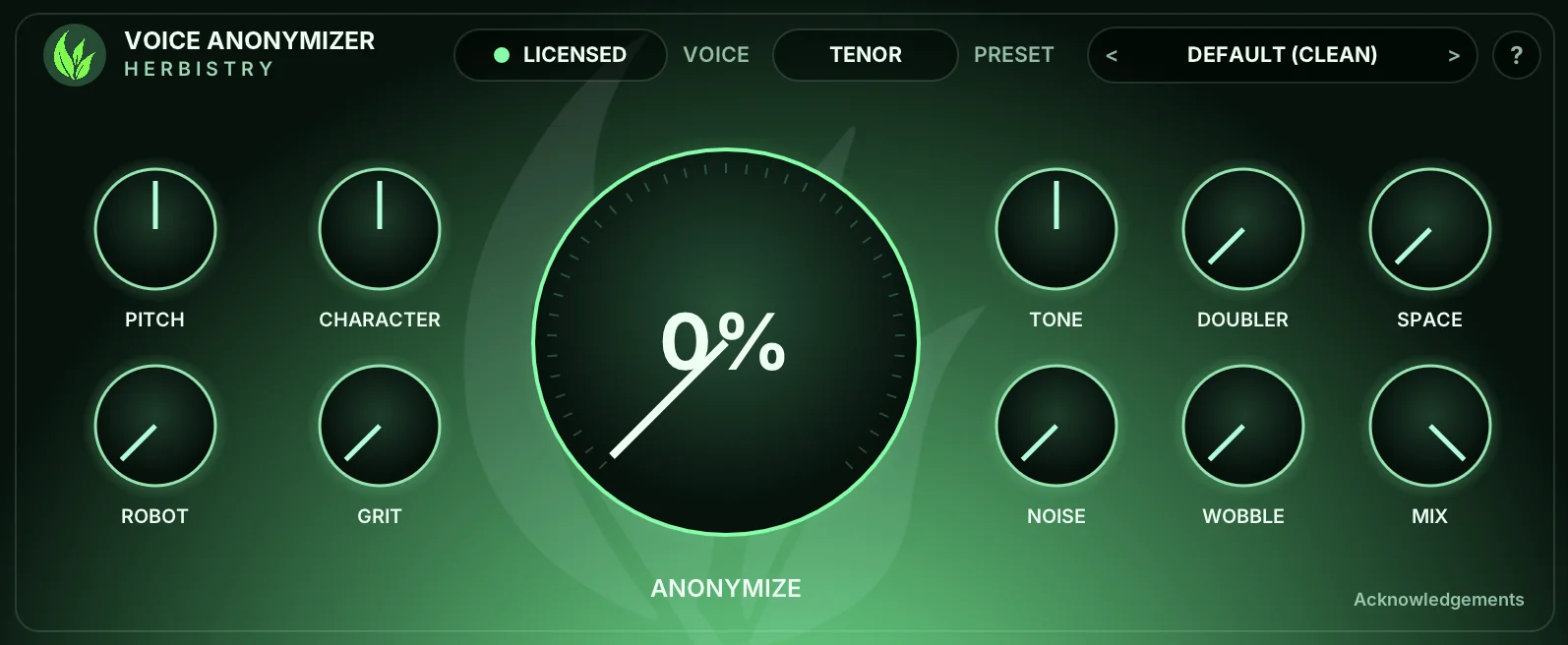
Along the top: license status, Voice, Preset, and help. Below: voice-shaping dials on the left, the big Anonymize dial in the middle, texture and output dials on the right. The pins match the breakdown that follows.

The Voice Anonymizer plugin window: the Herbistry leaf and VOICE ANONYMIZER name, a LICENSED pill, the Voice selector set to Tenor, the Preset selector on Default (Clean), and a help button across the top; four dials on the left, a large central Anonymize dial at 0%, six dials on the right, and an Acknowledgements link in the bottom-right corner

Around the edge

  • ALicense status. Reads TRIAL · BUY during the trial and LICENSED once bought. Click it to open Voice Anonymizer in FxFactory.
  • BVoice. Pick the speaker's natural range so presets land right.
  • CPreset. Step through ready-made voices with the arrows, or click it to pick one, save your own, or delete one you saved.
  • DHelp. The ? button opens this manual.
  • EAcknowledgements. Opens the open-source credits, with a View full license texts button.

The dials

  • 1Pitch
  • 2Character
  • 3Robot
  • 4Grit
  • 5Anonymize (the big one)
  • 6Tone
  • 7Doubler
  • 8Space
  • 9Noise
  • 10Wobble
  • 11Mix

Every dial, low to high

The dials, one by one

Pitch, Character and Tone sit at neutral in the middle and turn either way. Every other dial does nothing at zero and its full effect at the top. Here is what you hear as you turn each one from all the way down to all the way up.

Voice shaping

1

Pitch

Voice shaping

Sets how high or low the voice sits.

All the way down

A deep, heavy, slowed-down voice. Monster, giant, sinister narrator.

All the way up

A high, light, sped-up voice. Chipmunk, cartoon, tiny creature.

Dead center leaves the pitch exactly as it was.

2

Character

Voice shaping

Changes the size and resonance of the voice without changing the pitch. This is your gender and age lean.

All the way down

A bigger, fuller, chestier voice. Reads older, larger, more masculine.

All the way up

A smaller, brighter voice. Reads younger, smaller, more feminine.

Dead center leaves the voice's natural tone untouched.

The disguise dial

5

Anonymize

Headline feature

The reason this plugin exists. It disguises who is talking from anyone listening, while keeping what they say clear.

All the way down

Off. Your real voice comes through with nothing added.

All the way up

Strongest disguise. The speaker is masked but still easy to understand.

Anonymize stacks on top of everything else, so you can hide the voice first and then add as much or as little character as you want.

What Anonymize is, and what it isn't

Anonymize is a voice disguise for the people listening: it keeps an audience from recognizing who is talking. It is not forensic-grade protection, and it is not built to beat voice-analysis software. When hiding someone's identity really matters, use it as one layer and pair it with other measures, like keeping faces, names, and other identifying details out of the edit too.

Texture & character

3

Robot

Texture

Adds a metallic, machine-like ring to the voice.

All the way down

Off. The voice keeps its natural texture.

All the way up

Full metal. Classic sci-fi robot or computer voice.

4

Grit

Texture

Adds dirt, drive, and distortion.

All the way down

Clean. No distortion at all.

All the way up

Heavily broken up. Demon growl, blown speaker, angry megaphone.

6

Tone

Texture

A single dial that runs from dark and muffled, through natural, up to thin and tinny.

All the way down

Dark and muffled. Like the voice is behind a wall, or underwater.

All the way up

Thin and boxy. The "through a phone, radio, or bullhorn" sound.

The middle is the neutral, do-nothing spot. This dial sits halfway by default.

7

Doubler

Texture

Layers a second, subtly different copy of the voice on top.

All the way down

A single, dry voice.

All the way up

Thick and wide. Two takes stacked together for more body and presence.

8

Space

Texture

Adds room, echo, and distance around the voice.

All the way down

Close and dry, right up on the microphone.

All the way up

Big and far away. A large hall, a cathedral, a ghost down a corridor.

9

Noise

Texture

Adds a hiss-and-crackle floor, the kind you hear from old gear.

All the way down

Clean and quiet.

All the way up

Noisy and staticky. Pairs with Tone for old radio, walkie-talkie, or phone-line.

10

Wobble

Texture

Adds a slow, drifting unsteadiness to the pitch.

All the way down

Rock steady.

All the way up

Seasick, warped-tape wobble. Great for failing or degraded signals.

Output

11

Mix

Output

Blends the processed voice against the original, dry voice.

All the way down

Only the original, untouched voice. The effect goes silent.

All the way up

Only the fully processed voice. This is the default.

The space in between lets you soften any effect or keep a disguise sounding natural by letting a little of the real voice through.

The Voice selector (B)

Up top, next to the preset, is a Voice menu: Bass, Baritone, Tenor, Alto, Mezzo, Soprano. Pick the one closest to the speaker's natural range. It quietly tunes the presets so a voice built for a deep speaker still lands on a high one, and the other way around. If you are not sure, leave it on Tenor and adjust by ear. It does not touch the clean default or the device presets, since those are not about a voice range.

There is no wrong answer here, either. Picking the "wrong" range on purpose is a trick worth keeping: a deep-voice setting on a high speaker, or the reverse, often lands somewhere more interesting than the technically correct one. If it sounds good, it is good.

Advanced

Working the dials together

Any single dial is simple. The fun starts when you combine them. Here is how the controls play off each other, and a few recipes to get you going. None of this is locked in: think of these as starting points, then trust your ears.

The mental model

Work in three passes. Shape the voice first with Pitch, Character, and Anonymize. Add texture next with Robot, Grit, Tone, Noise, Wobble, Space, and Doubler. Then balance the whole thing with Mix. If a voice ever sounds like too much, you can almost always fix it by easing one setting back rather than starting over.

A believable different person

Pitch + Character, same direction

Move Pitch and Character the same way and the voice reads as a real, different human. Both down gives you a bigger, older person. Both up gives you someone smaller and younger. Keep the moves modest and it stays convincing.

Something inhuman

Pitch + Character, opposite directions

Push Pitch one way and Character the other and the voice stops sounding like a person at all. This is the secret behind aliens, goblins, and creatures. Add a touch of Robot or Grit to seal it.

Disguise a guest, keep it natural

Anonymize up, Mix back a touch

Turn Anonymize up, then ease Mix back just slightly so a little of the real delivery stays. You get a disguise that still sounds like a human being talking, not a machine. Every notch of Mix you pull back lets a bit more of the real voice through, so go easy.

Through a device

Tone up + a little Noise + a little Grit

Roll Tone up to thin out the voice, sprinkle in Noise for the line hiss, and add a little Grit for the crunch. That is your phone, radio, or megaphone. Add Wobble on top and it becomes a signal that is barely holding together.

Distance and mood

Space for size, Doubler for body

Space sets how far away and how haunted the voice feels. Doubler thickens it and gives it a produced, larger-than-life feel. A little of both reads cinematic. A lot of Space alone reads ghostly.

Disguise on top of a character

Preset first, then a light Anonymize

If you start from a character preset, it has already moved the pitch and resonance for you. So a light touch of Anonymize on top is usually plenty to disguise who it is. You rarely need to max both.

One click, full voice

Presets

A preset is just a snapshot of every dial at once. Pick one from the Preset selector up top, or step through them with the little arrows. Picking a preset sets all the dials for you, and you can still nudge anything afterward to make it yours. The list starts at Default (Clean), every dial at its do-nothing spot.

Character voices

  • Robot
  • Alien
  • Monster / Demon
  • Chipmunk
  • Deep Trailer Narrator
  • Ghost

Through a device

  • Telephone
  • Megaphone
  • Broken Radio
  • Walkie-Talkie

Voice shift

  • Feminine Lean a believable lean, not a perfect swap
  • Masculine Lean a believable lean, not a perfect swap

Privacy

  • Anonymize - Light
  • Anonymize - Strong

Honest expectations on voice shift

The Feminine and Masculine presets give you a believable lean, not a flawless swap. They are labeled that way on purpose. They sound great as a creative voice, just do not expect them to fool anyone into thinking it is a different person's gender.

Make it yours

Saving your own presets

Built a voice you love? Save it and reuse it anywhere.

  1. Dial in the voice until it sounds right.
  2. Click the Preset selector at the top of the plugin and choose Save Current…
  3. Give it a name. It now appears in your preset list right below the built-in ones.
  4. Changed your mind? Pick your saved preset, click the Preset selector again, and choose Delete "your preset's name". That option only shows up for presets you saved, so the built-in ones stay put.

Where your presets live

Each preset you save is a small file ending in .voiceanonymizer, stored on your Mac under Music ▸ Herbistry ▸ Voice Anonymizer ▸ Presets. Because they live there and not inside one project, your saved voices follow you everywhere: they show up in any audio app on your Mac that loads Voice Anonymizer. You can also hand one of those files to a friend or teammate so they get the exact same voice.

The first time Voice Anonymizer runs, it copies over any presets you saved in Incognito, so your old voices come along for the ride.

Two kinds of "preset"

Voice Anonymizer presets vs. Final Cut presets

This trips people up, so it is worth being clear. There are two separate places a preset can live, and they save different things.

Voice Anonymizer presets

Inside the plugin · the Preset selector
  • Saves only the voice-effect dial positions, nothing else.
  • Travels with you. Works in any audio app on your Mac that loads Voice Anonymizer.
  • Shareable. The saved file can be handed to someone else.
  • Best for: the voice itself, the thing you want to reuse across projects and apps.

Final Cut Pro presets

Inside Final Cut · Save Effects Preset
  • Saves the whole effect on the clip, including any keyframes and the rest of the audio effects stacked on it.
  • Lives in Final Cut's library. Only available inside Final Cut Pro.
  • Re-apply it to other clips and projects to repeat the exact treatment.
  • Best for: remembering the whole clip treatment, not just the Voice Anonymizer dials.

Rule of thumb

Use a Voice Anonymizer preset when you want to reuse the voice anywhere. Use a Final Cut preset when you want Final Cut to remember the entire setup on a clip, automation and all, so you can stamp it onto the next one.

If Final Cut hitches when you change the voice

You'll usually tweak Voice Anonymizer while a clip is playing so you can hear it, and that's exactly how it should work. The one exception is Final Cut Pro when you've got several Voice Anonymizer clips going at once: changing a preset or moving a dial mid-playback can make Final Cut pause for a second or two, or a change might not seem to land right away. It's a Final Cut quirk, not a fault in Voice Anonymizer, and it never affects your sound quality or your exported audio. If you hit it, pause playback for a beat, make your change, then keep playing. Final Cut catches up and you're back to editing. Logic and Ableton Live don't do this.

Cheat sheet

Quick reference

Every dial at a glance, from one end to the other.

DialAll the way downAll the way up
PitchDeep, heavy, monsterHigh, light, chipmunk
CharacterBigger, older, fullerSmaller, younger, brighter
AnonymizeOff, your real voiceStrongest disguise, still clear
RobotOffFull metallic robot
GritCleanDistorted, demon, blown speaker
ToneDark, muffled, underwaterThin, tinny, through-a-device
DoublerSingle dry voiceThick, wide, doubled
SpaceClose and dryBig hall, cathedral, ghostly
NoiseClean and quietHiss and crackle, old gear
WobbleRock steadyWarped-tape wobble
MixOriginal voice onlyFully processed voice

Before you install

System requirements

Voice Anonymizer is a Mac audio effect. Here is what you need.

Operating system
macOS 13.5 or later
Supported.
Works in
AU & VST3 hosts
Tested in Final Cut Pro, Logic Pro, GarageBand, Premiere Pro, Ableton Live, and DaVinci Resolve.
Mac type
Apple Silicon Mac
Built for M1 and newer. Intel Macs are not supported. Your host app has to run natively on Apple Silicon: an app opened through Rosetta, like Ableton Live 10, will not see it.
Installing
Via FxFactory
Needs the free FxFactory app. Free trial with watermark; buy and unlock in FxFactory.

Good to know

If playback stalls for a moment

Final Cut Pro can stall for a second or more while it re-syncs a plugin during playback. The two ways you are most likely to meet it: dragging a dial inside the Voice Anonymizer window as playback reaches a loop point, or switching presets while playback is running. The more clips you have using the plugin, the longer the stall lasts.

This one is not ours. It happens with other audio plugins too, including ones built on completely different code, and it still happens with every bit of Voice Anonymizer's processing switched off. We have reported it to Apple as FB25016341.

Ways around it, all tested:

  • Switch presets with playback stopped, then play.
  • Let go of the mouse before playback reaches the loop point.
  • During playback, adjust the dials from Final Cut's Inspector instead of the plugin window.

Get help

Stuck on something?

Trouble installing, buying, or running Voice Anonymizer? Reach out and we'll sort it.

Contact support →

Open source

Credits & licenses

Voice Anonymizer is built with the help of these open-source projects, each used under its own license. In the plugin, click Acknowledgements in the bottom-right corner to see them, then View full license texts for the complete licenses.

  • iPlug 2 and Cockos WDL: Zlib-like license
  • NanoVG, NanoSVG, and fontstash: zlib license
  • MetalNanoVG: MIT license
  • Signalsmith Stretch and Signalsmith Linear: MIT license
  • Steinberg VST 3 SDK: MIT license. VST is a registered trademark of Steinberg Media Technologies GmbH.
  • Red Sweater text-field cell: MIT license
  • Destroy FX AU Utilities: BSD 3-Clause license
  • Roboto (font): Apache License 2.0
  • Inter (font): SIL Open Font License 1.1
  • stb libraries (Sean Barrett): public domain
  • Freeverb design (Jezar): public domain